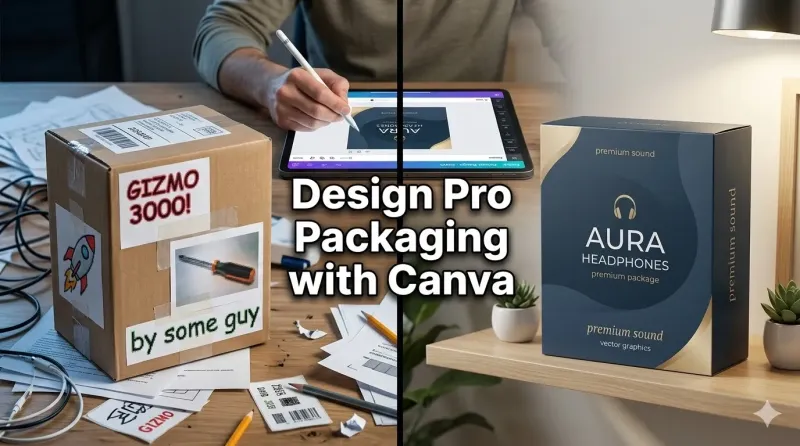
Packaging is your product's first impression—it's the silent salesperson that sits on shelves, arrives at doorsteps, and communicates your brand's value before a customer even experiences your product. For small businesses, professional packaging can be the difference between blending in and standing out. But hiring a professional designer can cost thousands of dollars, putting it out of reach for many entrepreneurs and startups.
Enter Canva—the user-friendly design platform that's democratizing professional design. With its intuitive drag-and-drop interface, extensive template library, and powerful design tools, Canva makes it possible for small business owners with zero design experience to create stunning, professional packaging that rivals agency work. Whether you're designing product boxes, labels, bags, or custom inserts, Canva provides everything you need to bring your packaging vision to life.
This comprehensive guide will walk you through everything you need to know about using Canva to design professional packaging for your small business. You'll learn how to choose the right templates, apply design principles that sell, prepare files for printing, and avoid common mistakes that amateurs make. By the end, you'll have the confidence and skills to create packaging that elevates your brand and delights your customers—all without hiring an expensive designer.
Why Packaging Design Matters for Small Businesses
Before diving into the "how," let's understand the "why." Packaging isn't just a container—it's a critical marketing tool.
The Business Impact of Great Packaging
First Impressions Count:
- 72% of consumers say packaging design influences their purchase decision
- It takes less than 7 seconds for a customer to form an opinion about your product
- Professional packaging signals quality and builds trust
Brand Recognition:
- Consistent packaging creates brand recall
- Unique design differentiates you from competitors
- Memorable packaging encourages social media sharing (free marketing!)
Customer Experience:
- Unboxing has become an experience customers anticipate
- Thoughtful packaging increases perceived value
- Quality packaging encourages repeat purchases and loyalty
Why Canva Is Perfect for Small Business Packaging
Affordability:
- Free version available with robust features
- Pro version ($12.99/month) unlocks premium templates and tools
- Fraction of the cost of hiring a designer ($500-$5,000+)
Accessibility:
- No design experience required
- Cloud-based—work from anywhere
- Intuitive interface with drag-and-drop simplicity
Flexibility:
- Thousands of customizable templates
- Easy to make changes and updates
- Collaborate with team members in real-time
Getting Started: Canva Basics for Packaging Design
Before creating your packaging, familiarize yourself with Canva's essential features.
Setting Up Your Canva Account
Free vs. Pro:
| Feature | Free Version | Pro Version |
|---|---|---|
| Templates | 250,000+ free templates | All templates + premium |
| Storage | 5GB | 1TB |
| Background Remover | ✗ | ✓ |
| Brand Kit | ✗ | ✓ (unlimited colors/fonts) |
| Resize Tool | ✗ | ✓ (Magic Resize) |
| Print Quality | Standard | High-resolution + bleed |
Recommendation: Start with the free version to learn. Upgrade to Pro when you're ready to print professionally or need advanced features.
Understanding Canva's Interface
Key Areas:
- Templates Panel (Left): Browse pre-designed packaging templates
- Canvas (Center): Your design workspace
- Elements Panel: Access shapes, icons, illustrations, and graphics
- Text Panel: Add and customize text
- Uploads Panel: Upload your logo, product photos, and brand assets
- Download Button (Top Right): Export your design in various formats
Essential Tools for Packaging Design
Grids and Frames:
- Organize content with precision
- Create consistent layouts
- Align elements professionally
Layers Panel:
- Manage overlapping elements
- Lock elements to prevent accidental changes
- Group related elements together
Transparency Tool:
- Adjust opacity for subtle effects
- Create overlays and watermarks
- Blend images seamlessly
Choosing the Right Packaging Template
Canva offers thousands of packaging templates. Choosing the right one sets the foundation for your design.
Types of Packaging Templates Available
Product Boxes:
- Retail boxes (various sizes)
- Shipping boxes
- Gift boxes
- Product sleeves
Labels and Stickers:
- Product labels (round, square, rectangular)
- Shipping labels
- Seal stickers
- Hanging tags
Bags and Pouches:
- Paper bags
- Stand-up pouches
- Gift bags
- Shopping bags
Additional Packaging:
- Thank you cards
- Insert cards
- Wrapping paper
- Business cards
How to Find the Best Templates
Search Strategy:
- Use specific keywords: "product box," "cosmetic label," "jewelry box"
- Filter by your industry: food, beauty, fashion, etc.
- Sort by "Most Popular" to see proven designs
- Check "Pro" filter if you have Canva Pro for premium options
What to Look For:
- Clean layout: Avoid overly busy designs
- Customizable elements: Easy to change colors, fonts, and images
- Professional quality: Good spacing, alignment, and hierarchy
- Industry relevance: Matches your product category
Template Selection Checklist
Before committing to a template, ask:
- ✓ Does it match my brand aesthetic?
- ✓ Is there enough space for required information?
- ✓ Can I easily customize colors and fonts?
- ✓ Does it have the right dimensions for my product?
- ✓ Is it print-ready (or can I make it print-ready)?
Design Principles for Professional Packaging
Great packaging isn't just pretty—it's strategic. Apply these design principles to create packaging that sells.
1. Hierarchy: Guide the Eye
What It Is: Arranging elements so viewers see information in order of importance.
How to Apply:
- Most Important: Brand name/logo (largest, boldest)
- Second: Product name/variant
- Third: Key benefit or tagline
- Fourth: Supporting details (size, weight, ingredients)
- Last: Legal information, barcodes, fine print
Canva Tools:
- Use font size to create hierarchy (main title: 48-72pt, subtitles: 24-36pt, body: 12-18pt)
- Apply bold or different colors to important text
- Use spacing to separate sections
2. Color Psychology and Branding
Choose Colors Strategically:
| Color | Emotion/Association | Best For |
|---|---|---|
| Blue | Trust, professionalism, calm | Tech, healthcare, finance |
| Green | Natural, healthy, eco-friendly | Organic products, wellness |
| Red | Energy, passion, urgency | Food, clearance sales |
| Black | Luxury, sophistication, power | Premium products, fashion |
| White | Clean, simple, pure | Minimalist brands, skincare |
| Gold/Yellow | Warmth, optimism, quality | Artisan products, treats |
Canva's Brand Kit (Pro Feature):
- Save your brand colors for consistency
- Apply brand colors with one click
- Ensure all packaging matches your brand
Color Rules:
- Limit to 2-3 main colors
- Use the 60-30-10 rule (60% dominant, 30% secondary, 10% accent)
- Ensure sufficient contrast for readability
3. Typography: Font Selection and Pairing
Font Categories:
- Serif (traditional, elegant): Times New Roman, Playfair Display, Merriweather
- Best for: Luxury, traditional, editorial
- Sans-serif (modern, clean): Helvetica, Montserrat, Open Sans
- Best for: Modern, tech, minimalist
- Script (elegant, personal): Great Vibes, Pacifico, Dancing Script
- Best for: Handmade, artisan, feminine
- Display (bold, unique): Bebas Neue, Impact, custom fonts
- Best for: Headlines, logos, emphasis
Font Pairing Rules:
- Use maximum 2-3 fonts per design
- Pair contrasting styles (serif + sans-serif)
- Ensure readability at small sizes
- Maintain consistency across all packaging
Canva Tip: Canva Pro users can upload custom fonts to match their brand exactly.
4. White Space: The Power of Less
What It Is: Empty space around and between elements (also called negative space).
Why It Matters:
- Improves readability and comprehension
- Creates a premium, sophisticated look
- Directs focus to important elements
- Prevents visual overwhelm
How to Use It:
- Don't fill every inch of space
- Leave margins around edges (at least 0.25")
- Group related elements with proximity
- Separate unrelated elements with space
5. Imagery and Graphics
Using Photos:
- Use high-resolution images (300 DPI for print)
- Canva's photo library has millions of professional images
- Upload your own product photography
- Apply filters consistently for brand cohesion
Using Illustrations and Icons:
- Canva's Elements panel has thousands of graphics
- Choose a consistent style (line art, flat, 3D, etc.)
- Use icons to communicate features quickly
- Ensure graphics are relevant to your product
Canva Tools:
- Background Remover (Pro): Remove backgrounds from product photos instantly
- Filters: Apply consistent photo treatments
- Frames: Place images in shapes and layouts
Step-by-Step: Creating Your Packaging Design in Canva
Now let's put theory into practice. Follow this step-by-step process to create professional packaging.
Step 1: Gather Your Materials
Before opening Canva, collect:
- ✓ Product dimensions (length, width, height)
- ✓ Logo files (PNG with transparent background preferred)
- ✓ Brand colors (hex codes)
- ✓ Brand fonts (or Canva alternatives)
- ✓ Product photography or images
- ✓ Required text (product name, description, ingredients, etc.)
- ✓ Barcode (if applicable)
- ✓ Legal requirements (warnings, certifications, etc.)
Step 2: Choose Your Template or Create Custom Size
Option A: Use a Template
- Search "packaging" in Canva
- Filter by your product type (box, label, bag)
- Select a template that matches your vision
- Click "Customize this template"
Option B: Create Custom Dimensions
- Click "Create a design" (top right)
- Select "Custom size"
- Enter dimensions in inches, millimeters, or pixels
- For print: Use inches or millimeters
- Resolution: 300 DPI (dots per inch)
- Example: 4" x 4" x 2" box = create each panel separately
Pro Tip: For boxes, design each panel (front, back, sides, top, bottom) as separate pages in one Canva document.
Step 3: Set Up Your Brand Elements
- Upload Your Logo:
- Click "Uploads" in left panel
- Upload your logo (PNG with transparent background)
- Drag onto canvas
- Resize by dragging corners (hold Shift to maintain proportions)
- Apply Brand Colors:
- Click on any element
- Click color square in top toolbar
- Click "+" to add custom color
- Enter hex code (e.g., #FF6B6B)
- Apply to text, shapes, and backgrounds
- Set Brand Fonts:
- Click on text element
- Click font dropdown in top toolbar
- Search for your brand font
- Or upload custom font (Pro feature)
Step 4: Build Your Layout
Front Panel (Most Important):
- Logo: Place at top or center
- Product Name: Large, bold, easy to read
- Hero Image: High-quality product photo or illustration
- Key Benefit: One-sentence value proposition
- Visual Hierarchy: Ensure most important info is seen first
Back/Side Panels:
- Product Description: 2-3 sentences about features/benefits
- Ingredients/Materials: List clearly and legibly
- Usage Instructions: Step-by-step if needed
- Company Information: Website, social media, contact
- Barcode: Place on back or side (leave white space around it)
Canva Layout Tools:
- Position: Use "Position" tool to align elements precisely
- Grid: Turn on grid (View > Show guides) for alignment
- Group: Select multiple elements, click "Group" to move together
- Lock: Lock elements you don't want to accidentally move
Step 5: Add Text and Details
Text Best Practices:
- Keep it concise: People scan, they don't read
- Use bullet points: Easier to scan than paragraphs
- Font size: Nothing smaller than 8pt for print
- Contrast: Dark text on light background (or vice versa)
- Alignment: Left-align body text; center headlines
Required Information (Varies by Product):
- Product name and variant
- Net weight/volume
- Ingredients/materials
- Manufacturer information
- Country of origin
- Barcode/UPC
- Safety warnings (if applicable)
- Certifications (organic, cruelty-free, etc.)
Step 6: Refine and Polish
Final Checks:
- Alignment: All elements aligned properly
- Spacing: Consistent spacing between elements
- Colors: Match brand colors exactly
- Fonts: Consistent throughout
- Spelling: Proofread everything (twice!)
- Images: High resolution, not pixelated
- Bleed: Add 0.125" bleed if required by printer
Canva's Preview Feature:
- Click "Present" to see full-size preview
- Zoom in to check details
- Check how it looks on mobile (if selling online)
Preparing Your Design for Print
Designing in Canva is one thing; getting it printed professionally is another. Follow these guidelines to ensure print-ready files.
Understanding Print Requirements
Resolution:
- 300 DPI (dots per inch): Standard for professional printing
- Canva default: Usually sufficient, but verify
- Avoid: Images under 150 DPI (will look pixelated)
Color Mode:
- RGB: Canva's default (for screens)
- CMYK: Required for professional printing
- Issue: Canva exports in RGB; colors may shift slightly in print
- Solution: Order a proof before full production run
Bleed:
- What it is: Extra area (usually 0.125") beyond trim edge
- Why: Ensures no white edges after cutting
- Canva: Pro users can add bleed; free users may need to manually extend background
Safe Zone:
- What it is: Area where important elements should stay
- Why: Prevents text/logos from being cut off
- Rule: Keep critical elements 0.25" from edges
Exporting from Canva
Best Settings for Print:
- Click "Share" (top right)
- Select "Download"
- Choose file type:
- PDF Print: Best for professional printing (highest quality)
- PNG: Good for digital use or simple printing
- JPG: Smaller file size, but lower quality
- Settings:
- Pages: All pages (if multiple panels)
- Size: Actual size (100%)
- Quality: Highest available
- Transparent background: Only if needed
- Click "Download"
Canva Pro Features for Print:
- CMYK PDF: Pro users can download in CMYK color profile
- Bleed marks: Add crop marks and bleed
- Higher resolution: Better quality for large formats
Working with Printers
Before Sending Files:
- ✓ Confirm printer's specific requirements (bleed, resolution, format)
- ✓ Ask if they accept Canva PDFs or need other formats
- ✓ Request a digital proof before printing
- ✓ Order a physical proof for large runs
- ✓ Confirm turnaround time and shipping
Popular Printing Options:
- Canva Print:
- Integrated with Canva
- Convenient but limited options
- Good for small runs and prototypes
- Local Print Shops:
- Personalized service
- Can see samples in person
- Often competitive pricing
- Online Printers:
- Vistaprint, Moo, UPrinting, Printful
- Wide range of options
- Bulk discounts available
- Upload Canva PDFs directly
- Specialty Packaging Printers:
- For custom boxes, unique materials
- Higher minimum orders
- Best for established brands
Advanced Canva Features for Packaging
Once you've mastered the basics, these advanced features will take your packaging to the next level.
Brand Kit (Canva Pro)
What It Does:
- Store brand colors (unlimited with Pro)
- Upload brand fonts
- Save logo variations
- Apply brand elements with one click
How to Set Up:
- Click "Brand Kit" in left sidebar
- Add brand colors (enter hex codes)
- Upload logos (PNG with transparent background)
- Add brand fonts
- Use across all designs for consistency
Magic Resize (Canva Pro)
What It Does: Instantly resize designs for different formats.
Use Cases:
- Convert box design to label
- Resize packaging for social media
- Create multiple size variations quickly
How to Use:
- Open your design
- Click "Magic Resize" (top menu)
- Select new dimensions or platform
- Canva creates copies in new sizes
- Adjust elements as needed
Background Remover (Canva Pro)
What It Does: Instantly remove backgrounds from photos.
Perfect For:
- Product photos on packaging
- Creating clean, professional look
- Placing products on colored backgrounds
How to Use:
- Select image
- Click "Edit image" (top menu)
- Click "Background Remover"
- Wait a few seconds
- Image now has transparent background
Mockups and Presentations
Smartmockups Integration:
- Canva has built-in mockup generator
- See your design on real products
- Great for marketing and presentations
How to Create Mockups:
- Finish your packaging design
- Click "Apps" in left sidebar
- Search "Smartmockups"
- Choose product type (box, bottle, bag)
- Upload your design
- Download realistic mockup
Animations (For Digital Packaging)
Use For:
- Social media posts
- Website product displays
- Email marketing
How to Animate:
- Select element or page
- Click "Animate" (top menu)
- Choose animation style
- Adjust timing and effects
- Download as MP4 or GIF
Common Mistakes to Avoid
Even with Canva's ease of use, certain mistakes can undermine your packaging. Learn from these common errors.
Design Mistakes
1. Cluttered Layout
- Problem: Too many elements, colors, or fonts
- Solution: Embrace white space; limit to 2-3 fonts and 2-3 colors
2. Poor Readability
- Problem: Text too small, low contrast, fancy fonts
- Solution: Minimum 8pt font; high contrast; simple, readable fonts
3. Inconsistent Branding
- Problem: Different colors/fonts across products
- Solution: Create brand guidelines; use Brand Kit
4. Ignoring Hierarchy
- Problem: All elements same size/importance
- Solution: Establish clear visual hierarchy
5. Low-Quality Images
- Problem: Pixelated or stretched images
- Solution: Use high-resolution images (300 DPI); don't stretch beyond original size
Technical Mistakes
1. Wrong File Format
- Problem: Sending JPG instead of PDF for print
- Solution: Always use PDF Print for professional printing
2. Ignoring Bleed and Safe Zones
- Problem: White edges or cut-off text
- Solution: Add 0.125" bleed; keep text 0.25" from edges
3. RGB vs. CMYK Confusion
- Problem: Colors look different in print
- Solution: Order proofs; understand color shift is normal
4. Not Proofreading
- Problem: Typos, wrong information
- Solution: Proofread 3 times; have someone else review
Strategic Mistakes
1. Copying Competitors
- Problem: Blending in instead of standing out
- Solution: Research competitors, then differentiate
2. Ignoring Target Audience
- Problem: Design appeals to you, not customers
- Solution: Design for your ideal customer, not yourself
3. Overdesigning
- Problem: Too fancy, loses clarity
- Solution: Simple, clear, effective
Packaging Design Examples and Inspiration
Study these successful packaging approaches to inspire your own designs.
Minimalist Packaging
Characteristics:
- Clean, simple design
- Limited color palette (often black, white, one accent)
- Ample white space
- Simple typography
Best For: Skincare, tech products, premium goods
Canva Approach: Use simple templates; limit elements; focus on typography
Bold and Colorful Packaging
Characteristics:
- Vibrant, eye-catching colors
- Playful illustrations or patterns
- Unique shapes or layouts
- Fun, energetic vibe
Best For: Snacks, kids' products, lifestyle brands
Canva Approach: Use colorful templates; add illustrations; experiment with patterns
Luxury Packaging
Characteristics:
- Premium materials (implied through design)
- Elegant typography (serif fonts)
- Gold, black, or metallic accents
- Minimal text, maximum impact
Best For: High-end products, jewelry, cosmetics
Canva Approach: Use elegant fonts; add gold elements; keep design sophisticated
Eco-Friendly Packaging
Characteristics:
- Natural, earthy colors (greens, browns)
- Simple, uncluttered design
- Eco-certifications prominently displayed
- Recycled/natural material imagery
Best For: Organic products, sustainable brands, natural foods
Canva Approach: Use earth tones; add nature illustrations; highlight certifications
Resources and Tools to Enhance Your Canva Packaging
Supplement Canva with these resources for even better results.
Free Resources
Stock Photos:
- Unsplash (free high-quality photos)
- Pexels (free stock photos)
- Pixabay (free images and illustrations)
Icons and Graphics:
- Flaticon (free icons)
- The Noun Project (icons and symbols)
- Canva's built-in Elements library
Fonts:
- Google Fonts (free, web-safe fonts)
- Font Squirrel (free commercial-use fonts)
- Canva's font library (hundreds of options)
Color Tools:
- Coolors.co (color palette generator)
- Adobe Color (color wheel and palettes)
- Canva's color palette generator
Paid Resources (Worth the Investment)
Premium Stock Photos:
- Shutterstock
- iStock
- Adobe Stock
Premium Fonts:
- Creative Market
- MyFonts
- Fontspring
Learning Resources
Canva Design School:
- Free tutorials and courses
- Design fundamentals
- Canva-specific tips
YouTube Channels:
- Canva Official Channel
- Packaging design tutorials
- Small business branding tips
Frequently Asked Questions
Can I use Canva for commercial packaging?
Yes! Canva allows commercial use of designs created on their platform. However: - Free elements: Can be used commercially - Pro elements: Require Canva Pro subscription for commercial use - Premium stock photos: May require separate license - Always check individual element licenses
Do I need design experience to use Canva for packaging?
No. Canva is specifically designed for non-designers. With templates, drag-and-drop functionality, and intuitive tools, anyone can create professional packaging. That said, learning basic design principles (covered in this guide) will significantly improve your results.
How much does it cost to design packaging in Canva?
Free version: $0 - sufficient for basic packaging Pro version: $12.99/month or $119.99/year - unlocks premium features Printing costs: Varies by printer, quantity, and materials Total investment: Far less than hiring a designer ($500-$5,000+)
Can I print directly from Canva?
Yes. Canva Print allows you to order prints directly. However: - Limited product options compared to specialty printers - Good for prototypes and small runs - For large runs or custom packaging, use specialized packaging printers - Always order a proof before full production
What if my printer needs files in a different format?
Canva exports in multiple formats: - PDF Print (best for professional printing) - PNG (good for digital or simple printing) - JPG (smaller file size) - SVG (for vector graphics, Pro feature) If your printer needs a specific format Canva doesn't offer, you may need to: - Use a conversion tool - Work with a designer who can convert files - Choose a different printer that accepts PDF
How do I ensure color accuracy in print?
Challenges: - Canva uses RGB; printers use CMYK - Colors will shift slightly between screen and print Solutions: - Order a physical proof before full run - Use Pantone colors if exact match is critical (requires professional designer) - Accept that slight variation is normal - Choose printers who can match Canva RGB as closely as possible
Can I create 3D box designs in Canva?
Sort of. Canva is 2D design software, but you can: - Design each panel of a box separately - Use Canva's mockup tools to visualize 3D - Create dieline templates (flat box layouts) - For true 3D modeling, use specialized software (Adobe Dimension, Boxshot) For most small businesses, designing flat panels in Canva and working with a packaging printer is sufficient.
Conclusion: Your Professional Packaging Journey Starts Now
Creating professional packaging for your small business doesn't require a design degree or a massive budget. With Canva's intuitive platform, thousands of templates, and powerful design tools, you have everything you need to create packaging that rivals agency work.
Remember these key principles:
- Start with strategy: Know your audience and brand before designing
- Focus on benefits: Communicate value clearly and quickly
- Embrace simplicity: Less is often more in packaging design
- Maintain consistency: Use Brand Kit to ensure all packaging aligns
- Prepare properly: Follow print guidelines for best results
- Test and iterate: Order proofs, get feedback, refine your design
The packaging you create is more than just a container—it's a tangible expression of your brand, a marketing tool that works 24/7, and often the first physical touchpoint customers have with your business. Investing time in creating thoughtful, professional packaging pays dividends in customer perception, brand recognition, and sales.
Your action plan:
- Today: Set up your Canva account and explore templates
- This week: Create your first packaging design using this guide
- Next week: Order a proof and gather feedback
- Within a month: Launch your new packaging and watch your brand elevate
You don't need to be a designer to create beautiful, effective packaging. You just need the right tools, knowledge, and willingness to learn. Canva provides the tools; this guide provides the knowledge. Now it's time to take action.
Your products deserve packaging that does them justice. Your customers deserve a memorable unboxing experience. And you deserve the confidence that comes from professional, polished branding.
Open Canva. Choose a template. Start designing. Your professional packaging journey starts now.
Happy designing!